
Device management is only as useful as the data behind it. If old laptops, abandoned enrolments and devices belonging to former users remain mixed with active endpoints, every report and support decision takes longer to trust.
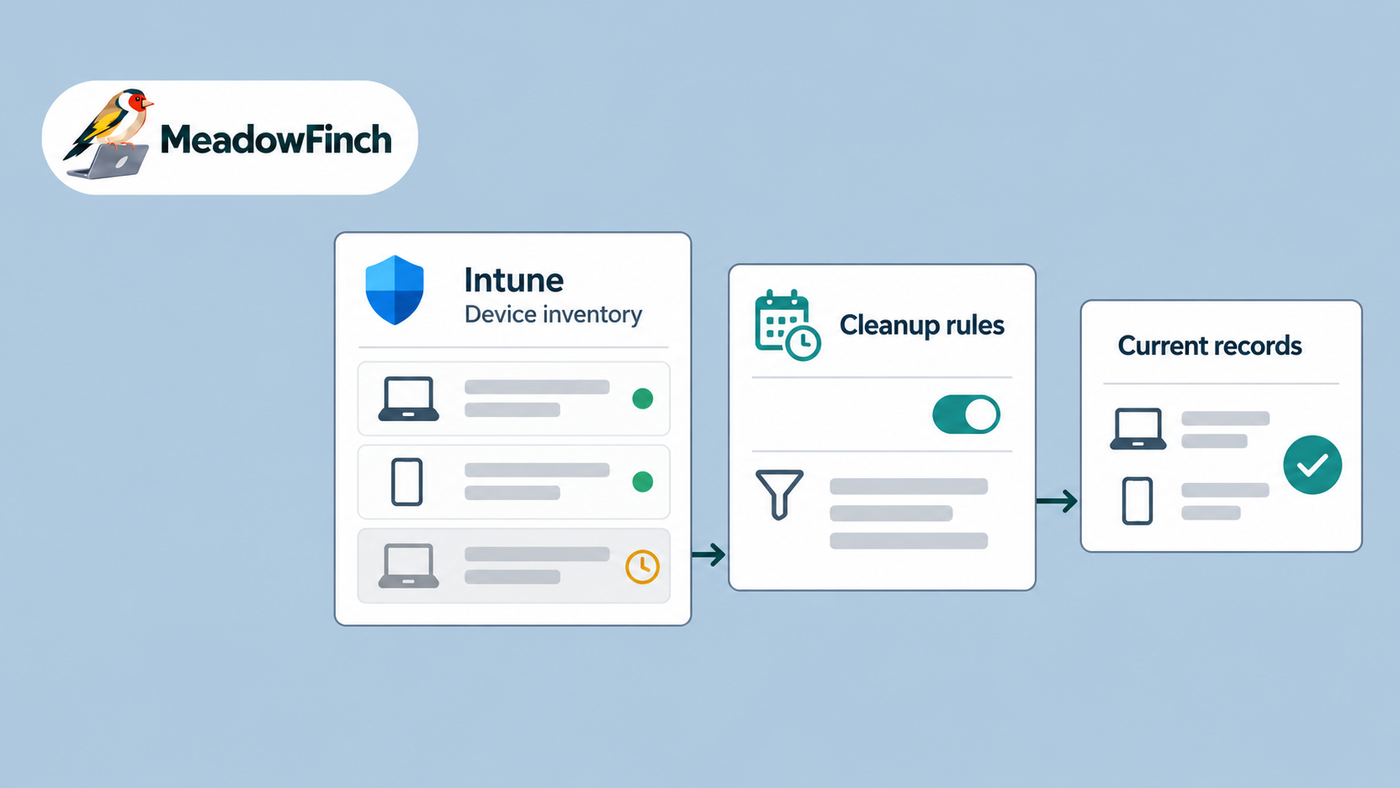
Intune device cleanup rules help with this problem. I use them as an inventory control, not as a security response or a substitute for a proper device lifecycle. Their job is to hide stale Intune management records after a defined period without a check-in. Used carefully, they make the device list more representative.
A shorter device list is not the objective. The objective is an inventory in which each visible record is useful, explainable and supported by an operational process.
What cleanup rules do, and what they do not do
The most important distinction is that a cleanup rule acts on the Intune record. When a device passes the configured inactivity threshold, Intune hides that stale record from the admin centre and reports. The rule does not send a destructive command to the physical device.
In practical terms, cleanup is not the same as any of the following:
- Wipe: a remote action intended to reset a device and remove data.
- Retire: an action intended to remove managed company data, policies and profiles while treating personal data differently.
- Delete in Intune: an administrator action whose resulting behaviour can vary by platform and should not be treated as simple housekeeping.
- Delete in Microsoft Entra ID: removal of the separate Entra device object. An Intune cleanup rule does not perform this step.
This separation matters during support and offboarding. Hiding an old Intune record does not prove that company data was removed, that a device was factory-reset, or that its identity object disappeared from Entra ID. I keep those activities in their own procedures, with the appropriate checks and approvals.
How I choose a threshold
Intune allows an inactivity period from 30 to 270 days. I do not choose a number simply because it makes the dashboard look cleaner. I start by understanding normal check-in patterns and the genuine practical reasons a managed device might be offline for a long time.
A sensible review includes:
- extended leave and other planned absences;
- spare devices held for recovery or business continuity;
- equipment in repair, storage or transit;
- seasonal or occasionally used endpoints;
- test devices owned by IT;
- platforms with a different operational lifecycle.
I favour a threshold that removes records which are genuinely no longer operational while allowing enough time for legitimate exceptions to be identified. A short threshold can hide devices that are still owned and supported. A very long threshold leaves noise in the inventory and weakens reporting. Neither extreme fixes the underlying process. Tailor this specifically to your environment and business needs, this is the practical part of the application of policies such as this. On paper I could arbitrarily assign a number for you to copy, but that will not take into account your environment.
Use platform rules deliberately
Cleanup rules can be created for all platforms or for individual supported platforms, with one rule per platform type. If an all-platform rule overlaps a platform-specific rule, the shorter inactivity period applies. I document this because an apparently harmless broad rule can otherwise override the more cautious lifecycle I intended for a particular device type.
My process before enabling a rule
I treat cleanup as a controlled change. The configuration itself is straightforward in the Intune admin centre under Devices > Device clean-up rules, but the preparation is where most of the value sits.
- Review the current inventory. I identify old check-in dates and compare them with ownership, joiner and leaver records, support tickets and known device stock.
- Agree the threshold. I record why it suits the platform and what business cases could legitimately exceed it.
- Preview affected devices. Intune can show the records that meet the proposed period. I review that list rather than creating the rule blind.
- Resolve exceptions. I confirm devices on extended leave, in repair or held as spares with the relevant owner or service-desk record.
- Create and document the rule. I record the platform, threshold, rationale, reviewer and review point in the change record.
- Monitor the first results. I check audit activity and sample affected records against the preview and service-desk information.
This process also exposes failures that cleanup should not conceal. A device that stopped checking in because its management channel is broken needs investigation. Automatically hiding it may improve a report while leaving a user with an unsupported endpoint. Where the device is still assigned and expected to operate, I treat the stale check-in as a support issue first.
Build exceptions into the service-desk process
A cleanup rule cannot understand why a device is inactive. People and process must supply that context. I therefore connect the threshold to service-desk workflows rather than managing it as an isolated Intune setting.
When a device will be offline for an extended period, the ticket should record its asset identifier, assigned user, reason, expected return and owner. Before the threshold is reached, the service desk (or appropriate team) can confirm whether the device should check in, be recovered, be retired through the correct process, or remain a documented exception.
For replacement and offboarding work, I do not close the task merely because the old record disappears from Intune. The checklist must cover the physical asset, company data, Autopilot registration where relevant, the Entra device object and any related Defender record. Each system answers a different question, so each needs an explicit decision.
Use audit logs to keep the rule accountable
After enabling cleanup, I review Intune audit logs under Tenant administration > Audit logs. The activity entries identify devices hidden by a cleanup rule and the rule responsible. This provides evidence that the automation ran and supports investigation when a record is no longer visible.
Review the configuration periodically.
Device estates change, support practices mature and a threshold that once made sense may stop fitting the business. My checks include the number and type of affected records, repeat support incidents, exception quality and whether platform-specific rules still reflect the actual lifecycle.
Remember that hidden does not always mean gone
Cleaned records enter a soft-deleted state in the Intune service for up to 180 days. A device can return to the inventory if it checks in during that period and its Intune enrolment certificate remains valid. If the certificate is no longer valid, re-enrolment may be required.
That behaviour is useful, but don't rely on it as a recovery plan. The safe approach is still to preview, check exceptions. Cleanup is best used to maintain trustworthy operational data after the lifecycle process has done its job.
What good looks like
A trustworthy Intune inventory is one where you can explain why a device is present, when it last communicated and who is responsible for the next action. Cleanup rules support that standard by removing stale records from day-to-day administration, but only when thresholds, exceptions and logs receive the same attention as the setting itself.
For me, this is directly connected to service quality and end user experience. Accurate data helps find the right record, understand the user’s position and avoid acting on an obsolete device. The rule is a small piece of automation; the value comes from the disciplined process around it.